Minecraft in Rust, in your pocket
What Is Horizon Launcher?
Horizon Launcher is the Android app that installs, prepares and plays Horizon, the native Rust rewrite of Minecraft Java Edition 26.3. The horizon launcher app puts the whole job on one clean shelf: pick a version, let the launcher prepare the game files from your own copy of Minecraft Java Edition, press Play, and your worlds open in a client written in Rust instead of running on a Java virtual machine.
That rewrite is the point. Horizon rebuilds the Java 26.3 client and its game logic subsystem by subsystem, and the project checks every piece against the vanilla game with 281 differential harnesses that feed both clients the same inputs and compare the outputs. World generation, redstone, mobs, villagers, raids, commands, the HUD and the recipe book are all held to that standard, so the game on your phone plays like the game you already know.
On Android the launcher is built for the way phones are held and played. There are on screen touch controls, full controller support, a choice of Vulkan or OpenGL ES rendering in Settings, and builds for both ARM64 and x86 phones, so the horizon launcher app runs across a wide spread of devices.
From install to Play
How Horizon Launcher Works
The launcher does three jobs. First, it installs the Horizon build you choose from its Versions page, and it keeps that build updated. Second, it prepares the game: Horizon contains no Minecraft code, assets or data of its own, so the launcher builds the resources it needs from the files of your own legally obtained copy of Minecraft Java Edition 26.3, played once on your account. Third, it plays: one tap starts the native client with the version, world and settings you picked.
Because preparation happens on your device from your own files, your saves stay in the vanilla format. Worlds created in the Java game open in Horizon, worlds played in Horizon open back in the Java game, and older worlds from 1.8 through 26.2 upgrade the same way the vanilla game upgrades them. Nothing is converted into a format only this launcher can read.
The launcher also carries the housekeeping a PC player would recognise: a Mods page for content mods, a Servers page for multiplayer, Notes and Settings pages, and self updates so the launcher itself stays current without a fresh download.
What the shelf holds
Horizon Launcher Features
Native Rust client
The game process is a Rust binary, not a JVM. Worlds, terrain and entities run natively on your phone, drawn with vanilla block models, lighting, sky and fog.
One tap install and prepare
The launcher installs the build, prepares its resources from your own Minecraft Java Edition files, and keeps everything updated. You press Play; it does the plumbing.
Vulkan rendering via wgpu
Frames render through Vulkan via wgpu on Android, with an OpenGL ES option in Settings for phones that behave better on the older pipeline.
Distant terrain
With Distant Horizons enabled, distant chunks render far beyond the normal view distance, up to 1024 chunks on capable hardware, without the usual fog wall.
Your vanilla worlds
Saves live in the vanilla format and round trip both ways. Singleplayer reproduces vanilla world generation, mobs, villagers, raids, redstone, every command, the HUD and the recipe book.
Touch and controller controls
On screen controls are laid out for thumbs, and controllers are supported for players who prefer physical sticks on the sofa or on a tablet stand.
Versions and content mods
Keep more than one build on the shelf, switch from the Versions page, and add content mods made of data and assets from the Mods page.
Free and open source
Horizon is free, and its code is published under the MIT licence by the Horizon Rust project, checked in the open against the vanilla game.
Rendered by Horizon itself
Horizon Launcher Screenshots
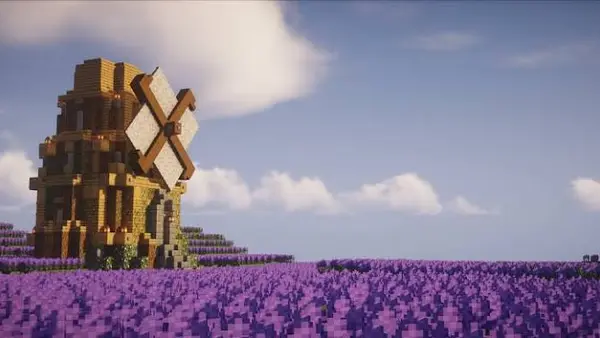
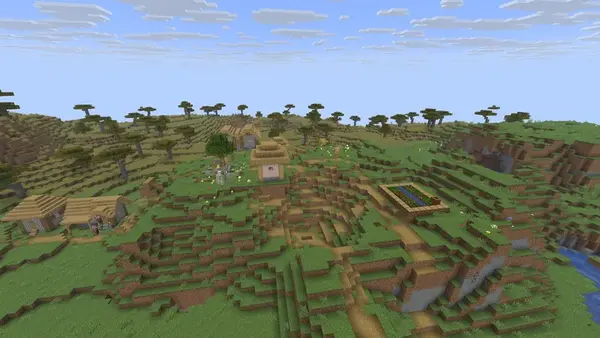
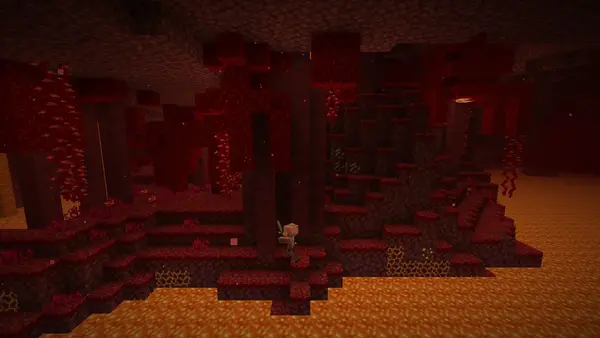
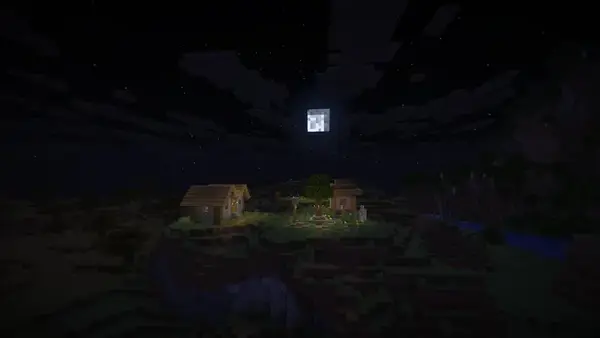
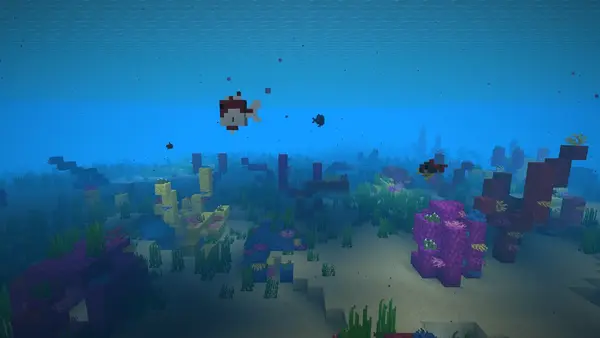
Every frame below was rendered by the Horizon engine with vanilla block models, lighting, sky and fog: the lavender windmill, a savanna village, the Nether, a village under a square moon, and a coral reef in a warm ocean.
On your phone in minutes
How to Install Horizon Launcher on Android
- Fetch the horizon launcher apk from the download page. Use the download button at the top of this page, wait out the short countdown on the next screen, and tap the button when it appears so the file lands in your downloads folder.
- Allow the install when Android asks. Tap the finished file and let your browser install apps for this one file. That prompt is Android doing its job for any app installed from a file.
- Open the launcher and sign nothing in. The Horizon Launcher icon joins your app drawer with the white H and lavender horizon bar. Open it and you land on the Play page.
- Pick your build and renderer. Choose the current build on the Versions page, then open Settings and select Vulkan, or OpenGL ES if your phone is older, before your first prepare run.
- Prepare once, then play. Point the launcher at your own Minecraft Java Edition 26.3 files when it asks, let preparation finish, and press Play on your first world.
The one time setup
First Setup: Prepare Your First World
Preparation is the step that surprises new players, and it only happens once per build. Horizon ships as a clean Rust client with no game assets inside it. The launcher prepares its resources from your own copy of Minecraft Java Edition 26.3, the same approach the desktop launcher takes, so the files on your phone come from the game you own.
Give the first prepare run a steady connection and a few uninterrupted minutes. When it finishes, the Play page is ready: create a new world to feel the Rust renderer on fresh terrain, or open an existing save, since Horizon reads and writes the vanilla save format. Graphics presets start on balanced settings; raise them after your first session, not before.
Why it feels fast
Vulkan Rendering and Distant Terrain
The Java client renders through a JVM; Horizon renders natively. On Android that rendering runs on Vulkan through wgpu, the same graphics stack the desktop builds use, with graphics presets that scale from modest phones to flagships. If a device struggles on Vulkan, Settings carries an OpenGL ES renderer, and picking the right one for your phone matters more than any other single toggle.
The headline trick is distance. With Distant Horizons switched on, the client keeps drawing terrain far past the normal chunk border, up to 1024 chunks of distant land on strong hardware. Mountain ranges you will never walk to still sit on your horizon, which is exactly where this launcher got its name.
Thumbs or sticks
Touch Controls and Controllers
The Android build lays its controls out on the screen: movement under the left thumb, looking and actions under the right, with the interface configured from the launcher before you drop into a world. It takes one session to settle, and the layout is forgiving for players coming from the Java game on a keyboard.
Controllers are supported as well, and they change the feel completely on a tablet or a phone on a stand. Menus, the HUD and gameplay all work from the pad, so a travel setup with a small controller plays like a handheld console.
More than one build, more than vanilla
Versions and Content Mods
The Versions page is where the shelf earns its keep. Install the current build for daily play, keep another build beside it for a favourite world, and switch between them from the launcher instead of reinstalling anything. The launcher installs, removes and prepares each version it manages, and updates them in place.
Mods in Horizon are content mods: packs made of data and assets, installed from the Mods page into the build you pick. They cover new blocks, items, recipes and structures. Java mod jars do not run in the Rust client, so a modpack built from data and assets is the format to look for, and the launcher handles the rest.
Checked before it is listed
Safety and Verification
Every build published on this page is installed and run on our own Android phones first: the install flow, the prepare run, a fresh world, an older upgraded world, both renderers and a controller session are all checked before the button goes up. The file you fetch is the file we tested.
Horizon itself is open source under the MIT licence, and its parity claims are testable: the project publishes the differential harness results that compare its output against the vanilla client. A launcher whose code and test results sit in the open is a launcher you can verify, not just trust.
Under the shelf
Technical Details
- Client engine: Minecraft Java Edition 26.3 rewritten from scratch in Rust; no JVM runs the game process.
- Rendering: Vulkan via wgpu on Android, OpenGL ES renderer available in Settings; graphics presets per device.
- Architectures: ARM64 and x86 Android builds; choose the build that matches your phone before installing.
- Saves: vanilla save format in both directions; worlds from 1.8 to 26.2 upgrade as the vanilla game upgrades them.
- Testing: 281 differential harnesses compare Horizon output with the vanilla client and server at the project level.
- Licence: free and open source under MIT; game resources are prepared locally from your own Minecraft Java Edition files.
The honest ledger
Pros and Cons
What works well
- Native Rust performance with Vulkan rendering on Android
- Distant terrain up to 1024 chunks with Distant Horizons
- Your existing vanilla worlds and saves, untouched in format
- Touch controls and controller support in one build
- Versions, mods, servers and updates managed on one shelf
What to know first
- The first prepare run needs your own Minecraft Java Edition 26.3 files
- Java mod jars do not run; mods are content packs of data and assets
- Distant terrain at high chunk counts wants a strong phone
- The project is actively developed, so small parity differences still surface
When the shelf wobbles
Troubleshooting
The game crashes on first launch. Switch the renderer in Settings before launching: Vulkan suits most current phones, OpenGL ES is the fallback for older hardware, and picking the wrong one is the most common cause of a black screen.
Preparation stalls or fails. Preparation builds resources from your Minecraft Java Edition files, so keep the connection steady and the app in the foreground until it finishes. A failed run can simply be started again; the launcher reuses what already prepared cleanly.
Frames stutter in busy areas. Drop one graphics preset, then lower the distant terrain range before touching anything else. The 1024 chunk view is a flagship trick; mid range phones play best with a shorter horizon.
A world will not open. Check the build on the Versions page matches the world you are opening, and let the launcher finish any pending update. Saves stay in vanilla format, so a world that misbehaves here still opens in the Java game.
Stay current, keep your worlds
How to Update
The launcher updates itself and the builds it manages. When a new Horizon build lands, the Versions page offers it in place: accept the update, let the launcher prepare what changed, and press Play. Your worlds, settings and content mods carry across, because none of them live inside the build that was replaced.
Updating the app itself works the same way as the first install: fetch the new file from the download page, install it over the existing app, and Android keeps your data in place. Never uninstall first; an update in place is what preserves your shelf exactly as you left it.